Simple DVM Example
To demonstate the basics of developing with Python for SIMetrix/SIMPLIS, the following guide works through applying pre- and post-process scripts to a testplan. The associated schematic will be kept deliberately simple and abstract, to enable focus to be on the DVM and Python development.
This set of examples will cover the basics of:
Adding scalar values to a DVM report.
Reporting the success or failure of custom tests.
Reading and modifying schematic data.
Reading simulation data.
Problem Definition
The example schematic is a simple 3 input summer, with three input voltages and single V-Out measurement. The Python interface will be used to check V-Out values and perform modifications to the input voltages.
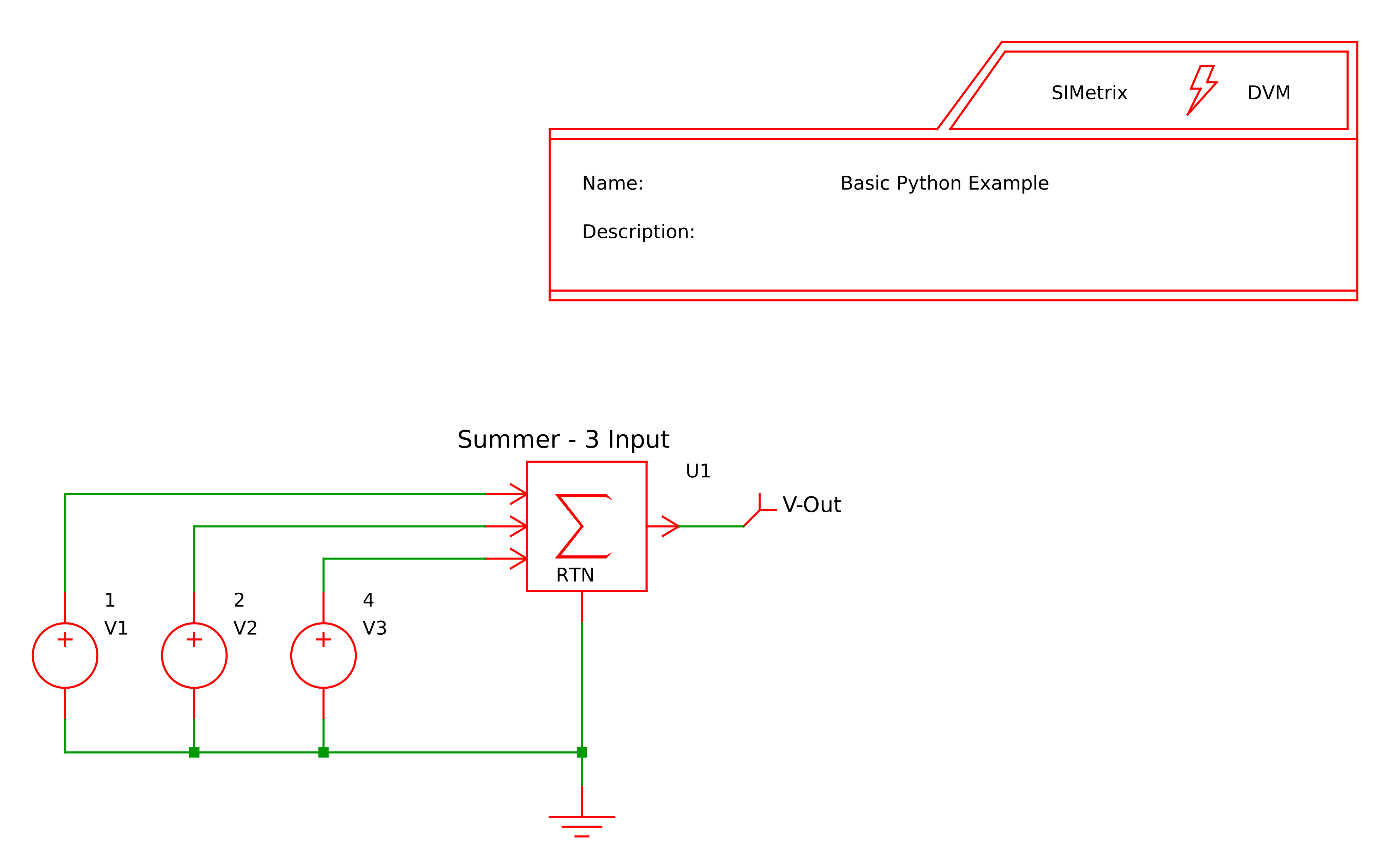
For the testplan file, only the following three columns will be made use of, although Python pre-/post-/final-processing can work alongside any other Testplan column type.
Label |
PreProcess |
PostProcess |
|---|---|---|
The following assumes the two above files have been downloaded and placed into the same directory containing no other files.
Writing Scalar Values
The first example will show how to write scalar values to a report output. This is useful for reporting pertinent data from a simulation not captured elsewhere, or for reporting custom calculated values during a post-processing step. Scalar values can only be written during a post- or final-process script, the functionality is unavailable for pre-process scripts.
Using the Testplan Editor and the empty testplan, create a new row with label Write Scalar Value, then right click on the empty cell in the PostProcess column and press Create Python script…. A dialog will appear for saving a file, name the file write-scalar-value.py and place it in the same directory as the testplan file. This will open the Python editor with a new post-process script.
Briefly switching back to the Testplan Editor, the following is how the testplan file should currently look:
Label |
PreProcess |
PostProcess |
|---|---|---|
Write Scalar Value |
write-scalar-value.py |
Back to the Python editor, the following boilerplate content should be present.
1## DVM Post-Process Script
2import simetrix, simetrix.dvm
3
4def postProcess(context : simetrix.dvm.PostTestContext, controlSymbol : simetrix.dvm.ControlSymbol):
5    pass ## TODO: implementation
6
7postProcess(locals()["dvm_postProcess_context"], locals()["dvm_postProcess_controlSymbol"])
The boilerplate imports the Python for SIMetrix/SIMPLIS content on line 2, defines the post-process script to be implemented on lines 4 and 5, and performs
the post-process function call using data obtained from the Python for SIMetrix/SIMPLIS subsystem on line 7. When writing post-process scripts the typical
development may add additional import calls and will add functionality to the postProcess() function. The call on line 7 should always be the final line
and must not be modified, as this is what SIMetrix/SIMPLIS will be expecting to be present when executing the post-process script.
To write scalar values to the report output, the context object within the postProcess() function is used.
The context object provides a mechanism for reading or writing data that is relevant to the testplan at the current
point of execution. As such, the context object has different functionality depending on whether a
pre-/post-/final-process is being written. The functionality for writing scalar values only exists for post-process and final-process scripts. The method
used to write a scalar value is createScalar() that requires two string arguments, the first argument
is the name and second is the value.
The boilerplate post-process script can be updated by replacing line 5 with a createScalar() call, resulting in:
1## DVM Post-Process Script
2import simetrix, simetrix.dvm
3
4def postProcess(context : simetrix.dvm.PostTestContext, controlSymbol : simetrix.dvm.ControlSymbol):
5    context.createScalar("test scalar", "test value")
6
7postProcess(locals()["dvm_postProcess_context"], locals()["dvm_postProcess_controlSymbol"])
To run the post-process script, ensure that both the script and the testplan are saved, then go back to the testplan and run the Write Scalar Value test. In the resulting DVM Test Report, the written scalar will appear in the Measured Scalar Values section.
The createScalar() method can be called multiple times within a post-process script to produce
multiple scalar values in the output report.
All scalar values must be converted to a string before being passed to createScalar(). Usually
this can be performed using the str() function. For example, writing a numeric value would be in the form:
context.createScalar("numeric scalar", str(4.21))
Tip
Messages can be written to the SIMetrix Command Shell using the print() function.
Reporting Test Success or Failure
This example will show how to report the status of a test, be it pass, fail or has generated a warning. A test can be split into smaller units that each report their status, using specifications. Each specification has a name, description and resulting status. The test has an overall status that is the single worst status reported by any specification. This enables for both collections of smaller related tests within a single test, or granularity within a complex test for determining where something failed.
Using the Testplan Editor and the testplan from the previous section, create a new testplan row with label Report Status and a new post-process script named report-status.py.
If following on from the previous example, the testplan will now look like the following:
Label |
PreProcess |
PostProcess |
|---|---|---|
Write Scalar Value |
write-scalar-value.py |
|
Report Status |
report-status.py |
To create specifications, the context object provides the createSpecification() method.
This method requires string arguments for a name and description, along with a TestStatus value indicating the status of the test.
The functionality for writing specifications only exists for post-process and final-process scripts.
To demonstate the three status types that can be reported, the boilerplate post-process script can be updated to the following:
 1## DVM Post-Process Script
 2import simetrix, simetrix.dvm
 3
 4def postProcess(context : simetrix.dvm.PostTestContext, controlSymbol : simetrix.dvm.ControlSymbol):
 5    from simetrix.dvm import TestStatus
 6
 7    context.createSpecification("Demo Pass", TestStatus.PASS, "Generates a pass response")
 8    context.createSpecification("Demo Fail", TestStatus.FAIL, "Generates a failure response")
 9    context.createSpecification("Demo Warn", TestStatus.WARN, "Generates a warning response")
10
11postProcess(locals()["dvm_postProcess_context"], locals()["dvm_postProcess_controlSymbol"])
In the above, the TestStatus is imported into the postProcess() for use, then three specifications
are created that will generate pass, fail or warning responses.
To run the post-process script, ensure that both the script and the testplan are saved, then go back to the testplan and run the Report Status test. In the resulting DVM Test Report, the specifications will appear in the Measured Spec Values section showing their status. Additionally, the overall status for the test found in the Test Details section will show that the test failed.
Accessing Schematic and Simulator Data
This example will demonstrate how to read and modify schematic data, along with reading
simulation data. Using the example schematic, this example
provides a set of tests that modify input voltages and read the waveform data for V-Out.
This example is not prescribing any form of best practice for building pre-/post-process scripts, it is designed simply to demonstate how to access schematic and simulation data.
Using the Testplan Editor and the testplan from the previous section, create a new testplan row with label Modify Voltage, a new post-process script named modify-voltage-post-process.py, and a new pre-process script named modify-voltage-pre-process.py.
If following on from the previous examples, the testplan will now look like the following:
Label |
PreProcess |
PostProcess |
|---|---|---|
Write Scalar Value |
write-scalar-value.py |
|
Report Status |
report-status.py |
|
Modify Voltage |
modify-voltage-pre-process.py |
modify-voltage-post-process.py |
In this example the pre-process will be used to change the voltage of V1 prior to the simulation being run, whilst the post-process will check the result of the simulation is as expected and reset the voltage setting for V1 back to the default value.
Pre-Process Script
The pre-process boilerplate is slightly different to the post-process boilerplate, as the pre-process script is required to return a message to be written in the test log file. For this example, the message returned will indicate what the pre-process script has done, which will be to set the voltage of V1 to 10v.
1## DVM Pre-Process Script
2import simetrix, simetrix.dvm
3
4def preProcess(context : simetrix.dvm.PreTestContext, controlSymbol : simetrix.dvm.ControlSymbol) -> str:
5    ## TODO: implementation
6    return "log message"
7
8locals()["dvm_preProcess_result"] = preProcess(locals()["dvm_preProcess_context"], locals()["dvm_preProcess_controlSymbol"])
To change this value, the controlSymbol can be used to access the schematic data using the
method schematic().
schematic = controlSymbol.schematic
The schematic object provides access to the part instances on the schematic via the
instances() method. In turn, an Element object
can be used to read and write property values using the propertyValue() and
setPropertyValue() methods. These functions can be used to find the instances
with REF of V1, and set its voltage value to 10v using the code:
1for i in schematic.instances():
2    if i.propertyValue("REF") == "V1":
3        i.setPropertyValue("value", "10")
The above can be simplified to the following, however care should be taken to manage error handling in the event that not part instance with the given REF value exists:
next(filter(lambda i: i.propertyValue("REF") == "V1", controlSymbol.schematic.instances())).setPropertyValue("value", "10")
The full expanded form of the pre-process script is:
 1## DVM Pre-Process Script
 2import simetrix, simetrix.dvm
 3
 4def preProcess(context : simetrix.dvm.PreTestContext, controlSymbol : simetrix.dvm.ControlSymbol) -> str:
 5
 6    schematic = controlSymbol.schematic
 7    for i in schematic.instances():
 8        if i.propertyValue("REF") == "V1":
 9            i.setPropertyValue("value", "10")
10
11    return "V1 set to 10v"
12
13locals()["dvm_preProcess_result"] = preProcess(locals()["dvm_preProcess_context"], locals()["dvm_preProcess_controlSymbol"])
Post-Process Script
For this example, the post-process script will be used to first validate that the input voltages are as intended, and second to verify that V-Out is as expected.
Validate Input Voltages
This example will demonstrate validating the input voltages by writing the values of V1 (10v), V2 (2v) and V3 (4v) to the test report, along with creating a specification that requires the sum of those values to be equal to 16v.
To write the voltage values, scalars will be created for the part instances V1, V2 and V3. This will be achieved in this example by looping through all of the part instances within the associated schematic, and for the instances with property value REF equal to V1, V2 or V3, the property value named value will be written as a scalar.
 1## DVM Post-Process Script
 2import simetrix, simetrix.dvm
 3
 4def postProcess(context : simetrix.dvm.PostTestContext, controlSymbol : simetrix.dvm.ControlSymbol):
 5    from simetrix.dvm import TestStatus
 6
 7    #   Write the voltages for V1, V2 and V3.
 8    for i in controlSymbol.schematic.instances():
 9        ref = i.propertyValue("REF")
10        match (ref):
11            case 'V1':
12                context.createScalar("V1", i.propertyValue("value"))
13            case 'V2':
14                context.createScalar("V2", i.propertyValue("value"))
15            case 'V3':
16                context.createScalar("V3", i.propertyValue("value"))
17
18postProcess(locals()["dvm_postProcess_context"], locals()["dvm_postProcess_controlSymbol"])
To create a specification that automatically validates the total of V1, V2 and V3 is equal to 16v, the above is updated to sum the values as they are found with a specification defined after the loop.
 1## DVM Post-Process Script
 2import simetrix, simetrix.dvm
 3
 4def postProcess(context : simetrix.dvm.PostTestContext, controlSymbol : simetrix.dvm.ControlSymbol):
 5    from simetrix.dvm import TestStatus
 6
 7     #   Write the voltages for V1, V2 and V3, and sum their totals.
 8    total = 0
 9    for i in controlSymbol.schematic.instances():
10        ref = i.propertyValue("REF")
11        match (ref):
12            case 'V1':
13                context.createScalar("V1", i.propertyValue("value"))
14                total += float(i.propertyValue("value"))
15            case 'V2':
16                context.createScalar("V2", i.propertyValue("value"))
17                total += float(i.propertyValue("value"))
18            case 'V3':
19                context.createScalar("V3", i.propertyValue("value"))
20                total += float(i.propertyValue("value"))
21
22    #   Specify that the total equals what we're expecting: (V1=10v, V2=2v, V3=4v: total 16v). Note that V1 is changed in the pre-process script.
23    context.createSpecification("Input total correct", TestStatus.PASS if total == 16 else TestStatus.FAIL, "Sum of input voltages V1, V2 and V3 should be 16v")
24
25postProcess(locals()["dvm_postProcess_context"], locals()["dvm_postProcess_controlSymbol"])
Verify V-Out
To verify V-Out, the graph data of the executed simulation will be accessed and values read from the V-Out curve.
The simetrix.currentGraph() function
returns a Graph object that represents the current graph.
For this example, the current graph is the one generated as part of the simulation for this test.
graph = simetrix.currentGraph()
The Graph object provides the method curves()
that returns a list of Curve objects. In this example there will be only a single curve representing V-Out, but in cases of multiple
curves the intended curve can be identified using either the id()
if known, or by inspecting the curve properties() to
check the value of the DefaultLabel.
vOutCurve = graph.curves()[0]
Tip
When developing scripts, the entire list of properties for any graph or circuit element can be printed to the SIMetrix Command Shell by providing the result of the properties() method to the print() function.
For example: print(simetrix.currentGraph().curves()[0].properties()).
To access the curve data vector, Curve provides the property vector()
that returns a GroupVector object. The GroupVector
represents all numeric data for a curve. In this example the data will be the x and y vectors, but
for multi-division generating simulations it would be a set of vectors defined as divisions.
vector = vOutCurve.vector
The data for single division GroupVector objects (or division zero of a multi-division vector) can be obtained
directly from the GroupVector object. Here we use the yreal property which
returns the GroupVector’s y-data as a list of real values. yreal always returns real even if the underlying data is
complex. Other properties can be used to obtain data as complex or polymorphic, that is real or complex determined at run-time.
The data vector returned by yreal is a standard Python list and therefore iterable. Whilst not advisable for larger output data vectors, the entire y-vector could be written to the output report using:
context.createScalar("V-Out", str(list(vector.yreal)))
For verifying the output voltage, in this simple example the expected V-Out voltage could be checked by inspecting the first yreal value in the output.
context.createSpecification("V-Out [0] as expected", TestStatus.PASS if int(vector.yreal[0]) == 16 else TestStatus.FAIL, "VOut should be 16v")
Alternatively, the mean of the output voltage could be inspected:
from statistics import mean
context.createSpecification("V-Out mean as expected", TestStatus.PASS if int(mean(vector.yreal)) == 16 else TestStatus.FAIL, "VOut should be 16v")
Combining validating the input voltages with verifying V-Out, along with resetting V1 back to the original voltage of 1v, the full example post-process script becomes:
 1## DVM Post-Process Script
 2import simetrix, simetrix.dvm
 3
 4def postProcess(context : simetrix.dvm.PostTestContext, controlSymbol : simetrix.dvm.ControlSymbol):
 5    from simetrix.dvm import TestStatus
 6
 7    #   Write the voltages for V1, V2 and V3, and sum their totals.
 8    total = 0
 9    for i in controlSymbol.schematic.instances():
10        ref = i.propertyValue("REF")
11        match (ref):
12            case 'V1':
13                context.createScalar("V1", i.propertyValue("value"))
14                total += float(i.propertyValue("value"))
15            case 'V2':
16                context.createScalar("V2", i.propertyValue("value"))
17                total += float(i.propertyValue("value"))
18            case 'V3':
19                context.createScalar("V3", i.propertyValue("value"))
20                total += float(i.propertyValue("value"))
21
22    #   Specify that the total equals what we're expecting: (V1=10v, V2=2v, V3=4v: total 16v). Note that V1 is changed in the pre-process script.
23    context.createSpecification("Input total correct", TestStatus.PASS if total == 16 else TestStatus.FAIL, "Sum of input voltages V1, V2 and V3 should be 16v")
24
25    #   Read VOut.
26    graph = simetrix.currentGraph()
27    vOutCurve = graph.curves()[0]
28
29    vector = vOutCurve.vector
30
31    context.createScalar("V-Out", str(list(vector.yreal)))
32    context.createSpecification("V-Out [0] as expected", TestStatus.PASS if int(vector.yreal[0]) == 16 else TestStatus.FAIL, "VOut should be 16v")
33
34    from statistics import mean
35    context.createSpecification("V-Out mean as expected", TestStatus.PASS if int(mean(vector.yreal)) == 16 else TestStatus.FAIL, "VOut should be 16v")
36
37    #   Reset the V1 to be 1v
38    next(filter(lambda i: i.propertyValue("REF") == "V1", controlSymbol.schematic.instances())).setPropertyValue("value", "1")
39
40postProcess(locals()["dvm_postProcess_context"], locals()["dvm_postProcess_controlSymbol"])
To run the post-process script, ensure that both the script and the testplan are saved, then go back to the testplan and run the Modify Voltage test.