First Run
With installation completed (see Installation) you can now run some simple tests to confirm that Python is working correctly within the SIMetrix/SIMPLIS environment. Proceed as follows:
Create a new Python script using menu File | New | Python Script
Enter the following text, but don’t copy and paste; type it in character by character.
import simetrix as sx
As you type the first character you should see something like this:
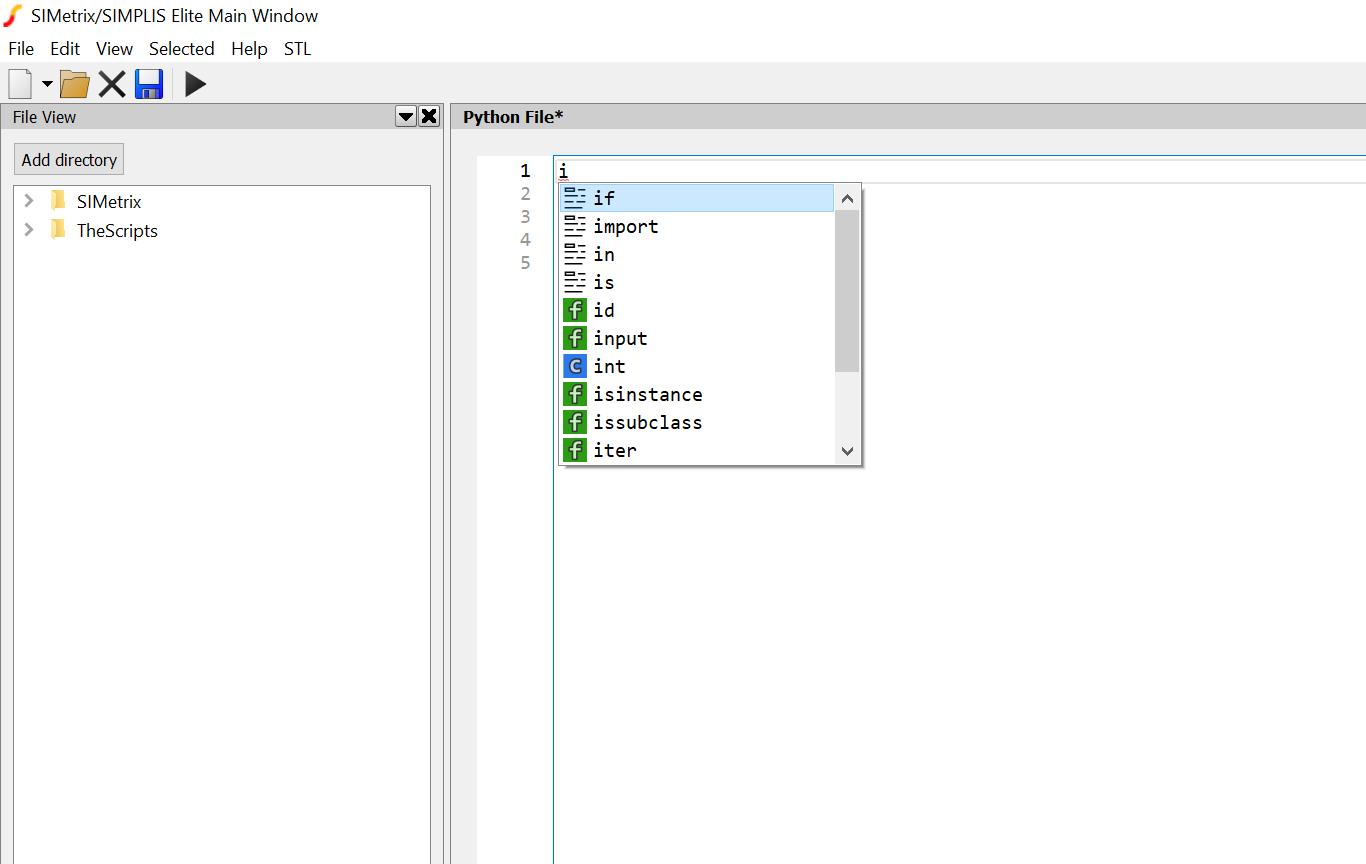
The pop up box is the “completer”. This indicates that the pyright language server is working correctly. As you continue typing and have completed up to “import sim” you should see:
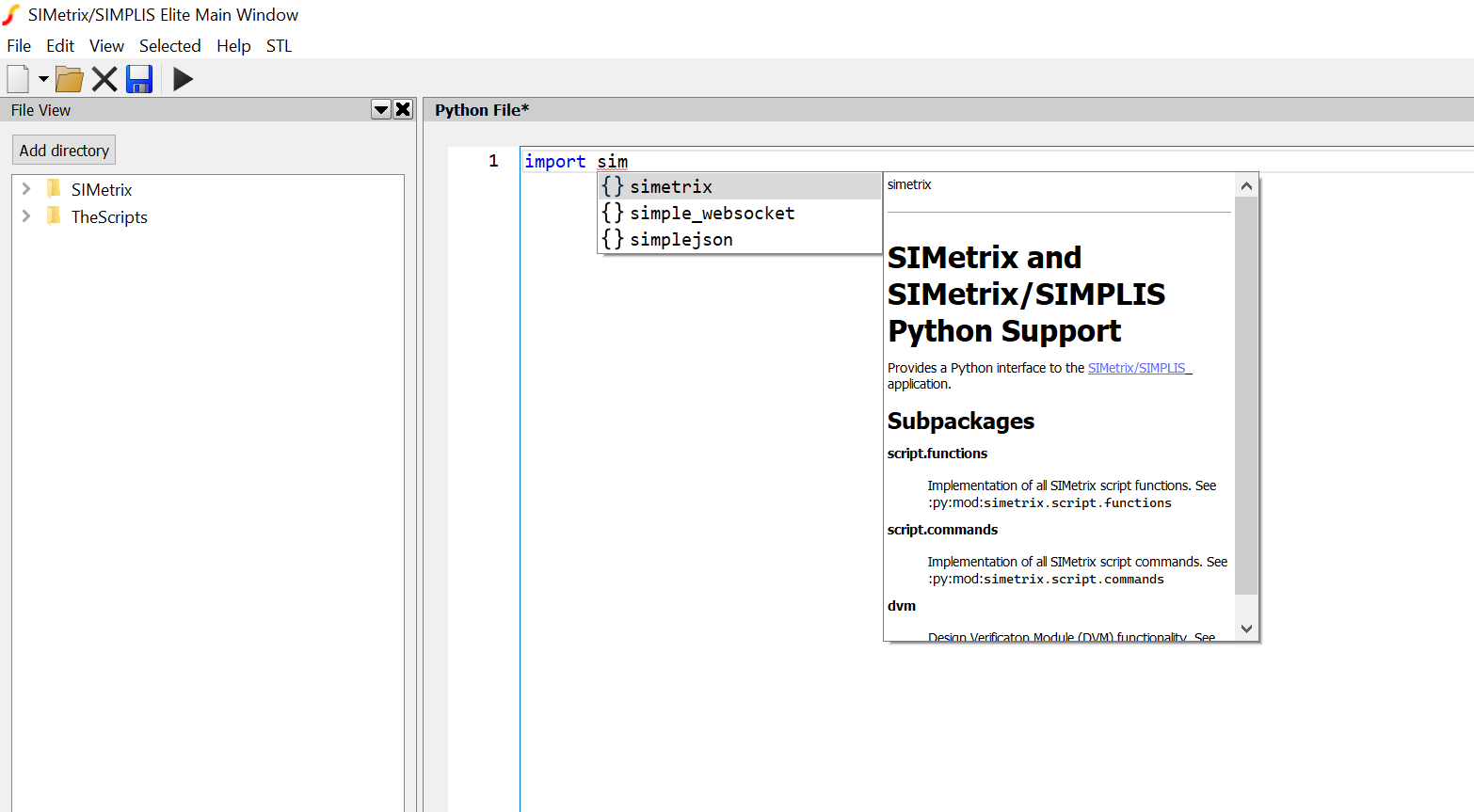
This shows the SIMetrix/SIMPLIS documentation and indicates that the simetrix package has been correctly installed.
Finally enter the following code (you can copy and paste now) which runs a simple SIMetrix command:
import simetrix.script.commands as sc

sc.About()
Now run this script by clicking on the “Play” button. It is not necessary to save the script first.
This should open the SIMetrix “About” box. This indicates that the SIMetrix interface is working correctly.
See Examples for some simple examples to demonstrate the SIMetrix/SIMPLIS Python interface.